Import/Export UI
Introduction
The Export/Import UI feature enhances the flexibility and portability of your UI designs by allowing you to import and export UI files. Import UI functionality supports .ezui and .vtw file formats, making it easier to transfer your work between different environments or share it with other team members.
Importing UI Files
Supported Formats
Importing UI files is possible in the following formats: - .ezui: UI Builder's native UI file format. - .vtw: a versatile file format compatible with various design tools.
How to Import a UI File
- Click the menu button in the top left and select 'Import UI'.
Choose the .ezui or .vtw file you wish to import from your local storage. -
Review the Components' list and type which are stored in the file. You can check/uncheck the components, import totally new or update the existing components.
The icon in the Component's row shows how the version of the component in the file compares with the one you already have:Icon Meaning (green) Will be created - you do not have this component yet (green) Import version is NEWER than existing (orange) Import version is OLDER than existing (blue) Import version is the SAME than existing The table has three columns: Component Name, Type and the unlabeled status column holding the icon above.
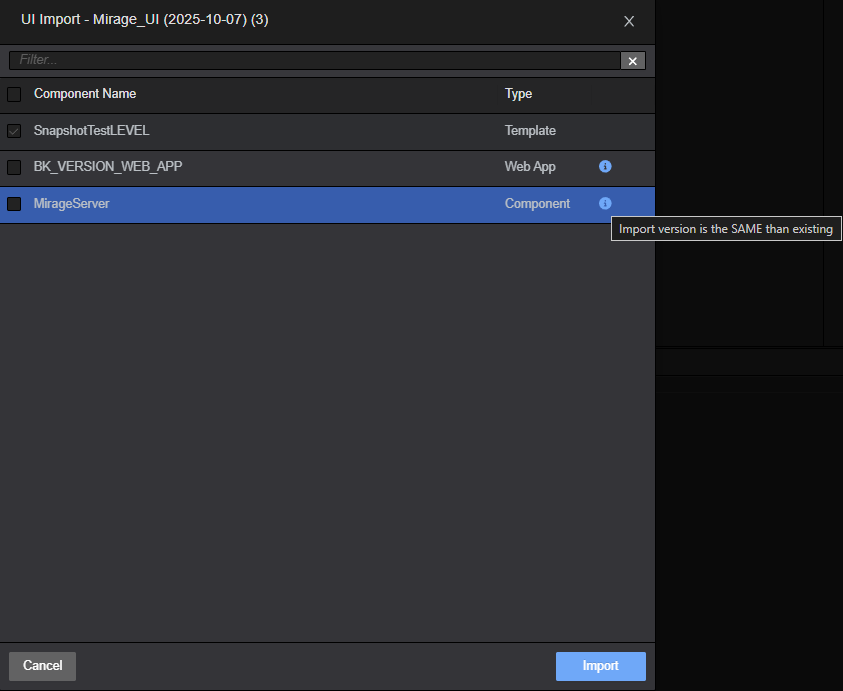
- If the file also carries Data Feeds or Data Sources that are new or changed, the primary button reads Next instead of Import. Click it to reach the Feeds and Sources step, tick the feeds and sources you want to bring in, and click Import. Back returns you to the Components list. If the file carries no feeds or sources this step does not appear.
- Click 'Import' to finalize the process. The imported UI will now be available in the UI Builder for further editing and customization.
Info
The dialog is titled UI Import - <filename> and has Cancel, Back and the primary Import / Next buttons in its footer, plus a filter drawer for the list.
Limitations and errors
- The file must be 2 MB or smaller; a larger file is rejected with "File is over 2MB size limit".
- The file must be a valid UI Builder export. Anything else gives "Unknown file format".
- A
.ezuithat contains only code and no layout is a code library and can only be imported into a Library UI. Importing it anywhere else gives "File is a Code Library, Only Library can import this file". - If the file does not say which kind of UI it is and you have no UI open, you get "UI has unknown mode, please try to Create UI first and then Import file in selected UI".
Note
Importing a file as a revision of the open UI is a separate action with its own, lower, 1 MB limit - see Revisions.
How to export UI file
Click the menu button in the top left and select Export UI.
There are no export options and no export dialog: the file is saved straight away as <UI name> (YYYY-MM-DD).ezui. Export is always .ezui - .vtw is an import-only format.
Tip
Import and Export are also available as toolbar buttons in the UI Manager's User Interfaces panel: Import UI and Export UI . The Export button stays disabled until a UI is selected.