Web App
Web App is a type of UI in UI Builder that lets you build standalone web applications using HTML, CSS and JavaScript. It can be embedded as a component in other UIs, or accessed directly in the browser via a dedicated URL.
Web App UI
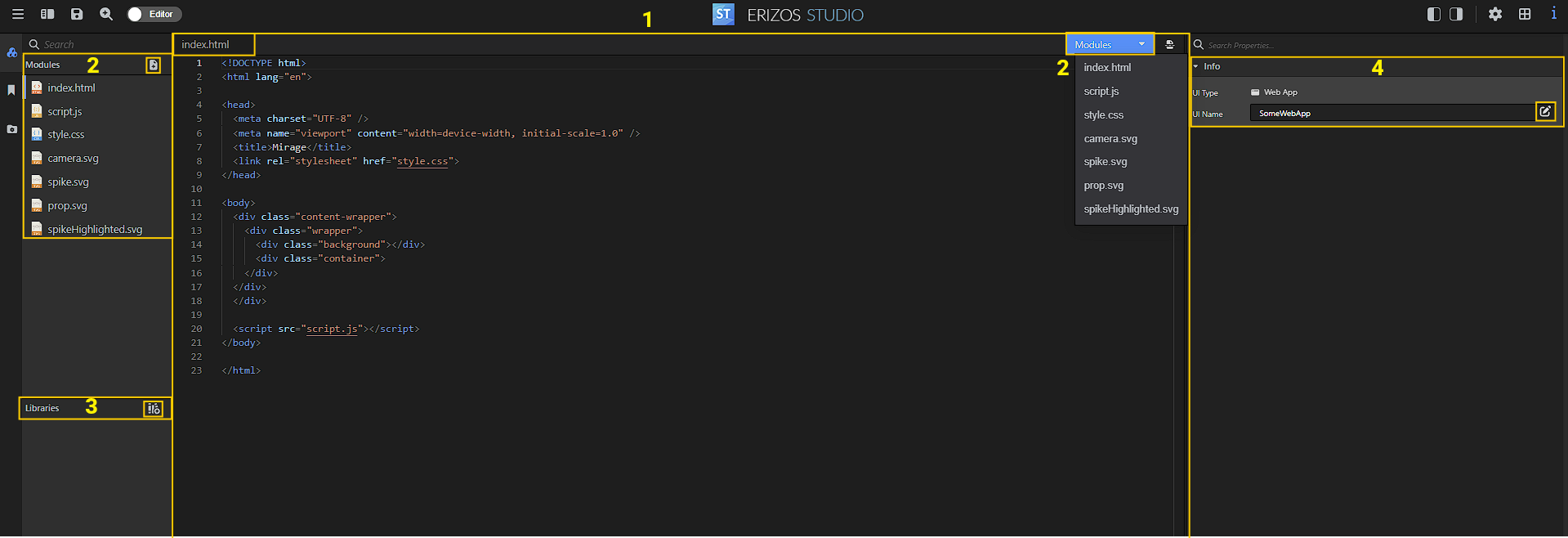
-
Review and edit the selected module. Its name is shown in the top left corner; the selected module is marked with a blue vertical line in the Modules tab on the left side of this section.
Split view: press the button in the top right of the editing window to enable split view and compare changes in your code. -
Modules tab: click on a module's name to select it and modify it in the edit window.
Inside the edit window there's quick access to the Modules' dropdown. -
Libraries tab: review existing libraries and add new ones using the + button in the toolbar.
-
Info tab: displays the UI type and Web App name. Click Edit to rename.
Creating a Web App
To create a new Web App:
- In UI Builder open UI Manager → Web App tab.
- Click the Create New Web App (+) button.
- Enter a name for your Web App and click Create.
Once created, double-click on the Web App in the list and the editor will open with three default files (Modules):
index.html— the main HTML pagescript.js— JavaScript logicstyle.css— styles
Tip
All Web Apps are available immediately after creation. They are accessible at:
http://localhost:5550/webapps
For example, a Web App named TeleprompterApp is accessible at:
http://localhost:5550/webapps/TeleprompterApp
Using a Web App in a UI
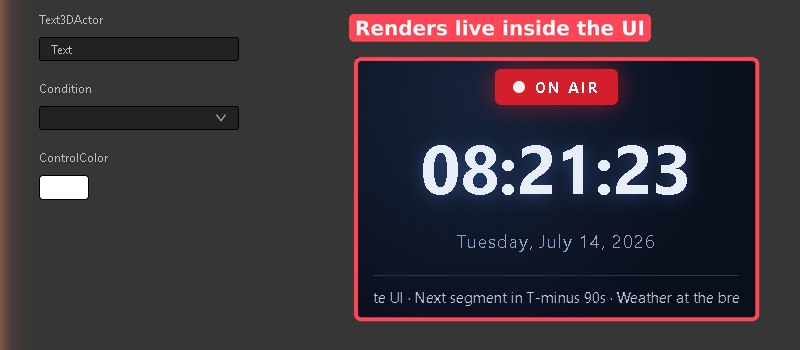
A Web App is added to a Show UI or Template UI in the same way as a UI Component. Once added, it renders live inside the UI.
- Open the Show UI or Template UI you want to use the Web App in.
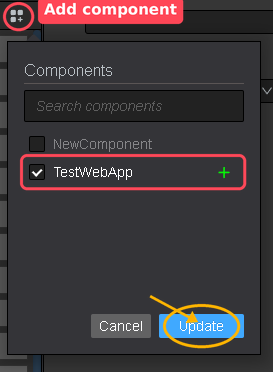
- In the Components panel, click Add component, tick your Web App, and click Update.
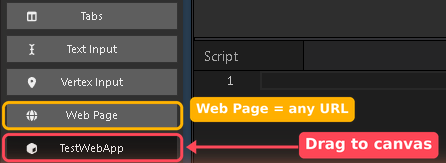
- The Web App now appears as a draggable source at the bottom of the Components toolbar, next to the built-in Web Page element. Drag it onto the canvas.
- This creates a Web App element bound to your Web App by name. The Properties panel shows Type: Web App and Component: (your Web App name) — no URL is required.
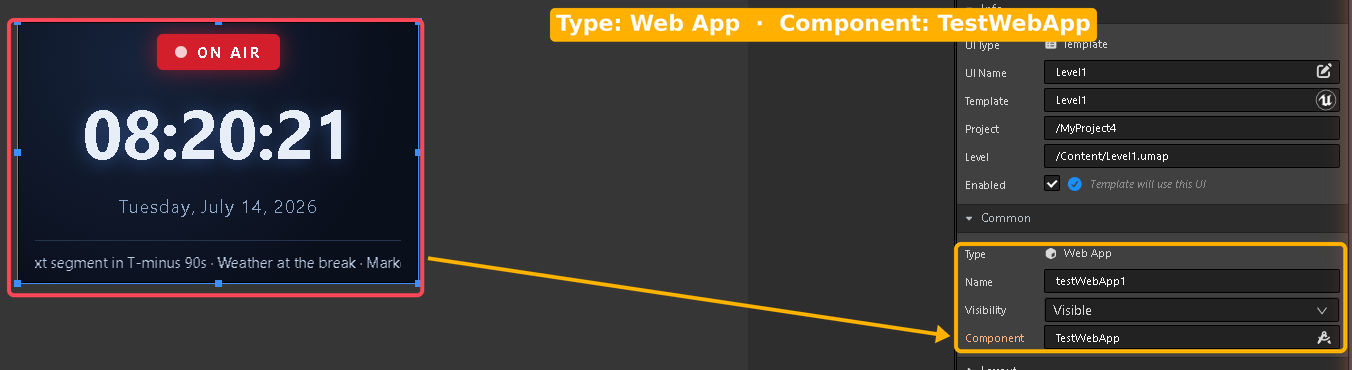
- Switch to Preview to see the Web App render live inside the UI.
Tip
Use a Web App element to embed a Web App built in this Studio — it is bound by name and travels with the UI. To embed an arbitrary address instead, use the Web Page element and set its url property.
Using a Web App as a standalone application
As well as embedding it in a UI, Erizos Studio can host a Web App as a fully standalone application, opened directly in a browser without being part of any UI.
- Browse to http://localhost:5550/webapps. This opens the Web Apps module, listing every Web App on the system.
- Select the Web App and click Open.
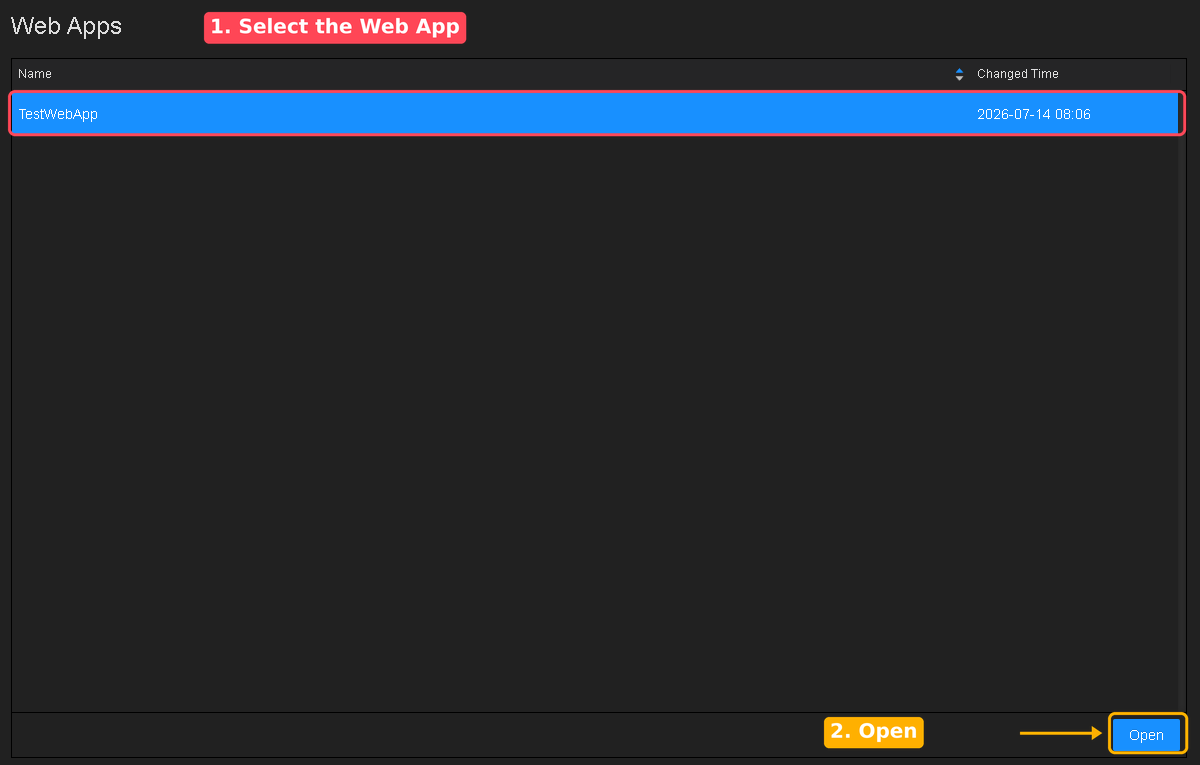
- The Web App launches in a new browser tab at
http://localhost:5550/webapps/<WebAppName>, running full screen as a standalone application. Take the URL from the address bar to share it or open it again later.
Tip
Replace localhost with the address of the Studio server to reach the Web App from another machine.
Managing Web Apps
Right-click any Web App in the list to access the following options: Rename, Duplicate, and Delete.