Tab Order
Common practice when controlling graphics is to move between the fields quickly using the Tab key. You can define the Tab Order in UI Builder.
The tab order is inherited from the order of the components in the UI Elements panel, the panel that lists the components on your UI.
Setting the tab order
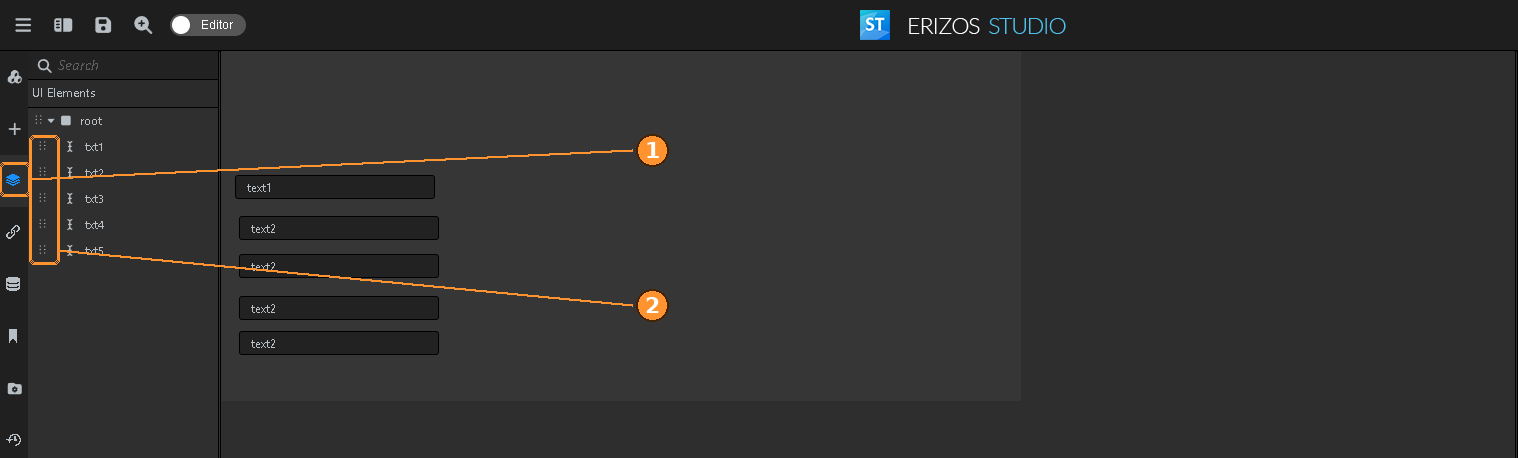
- Open the UI Elements panel.
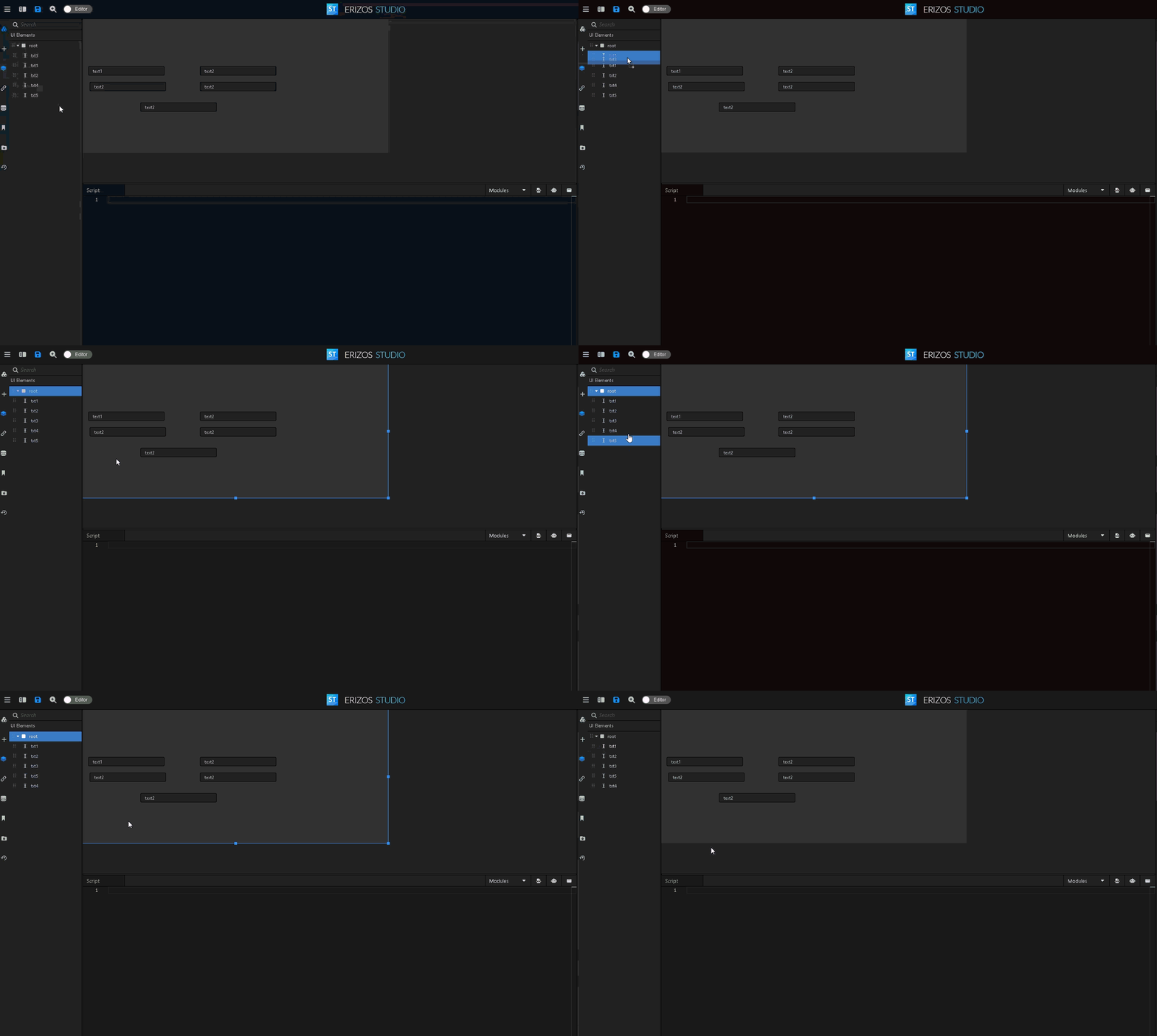
- Drag a component up or down in the tree to move it. Drop it between two components to reorder it; drop it onto a component to move it inside that component.
- Set the Editor / Preview switch in the header to Preview and press Tab to check the focus moves through the fields the way you want.
The keys
| Key | Moves to |
|---|---|
| Tab | the next field |
| Shift+Tab | the previous field |
| Ctrl+Tab | the next field group |
| Ctrl+Shift+Tab | the previous field group |
Tab and Shift+Tab step through the fields of the UI you built here. The two group keys step between the field groups of the standard payload editor - the form Studio generates when a template has no UI of its own.
Note
All four are system shortcuts and are fixed. They cannot be reassigned under
Settings → Shortcuts, and Studio refuses to assign any of these key
combinations to a user shortcut.